Bulk Edit is live in the GIS Cloud Mobile Data Collection app
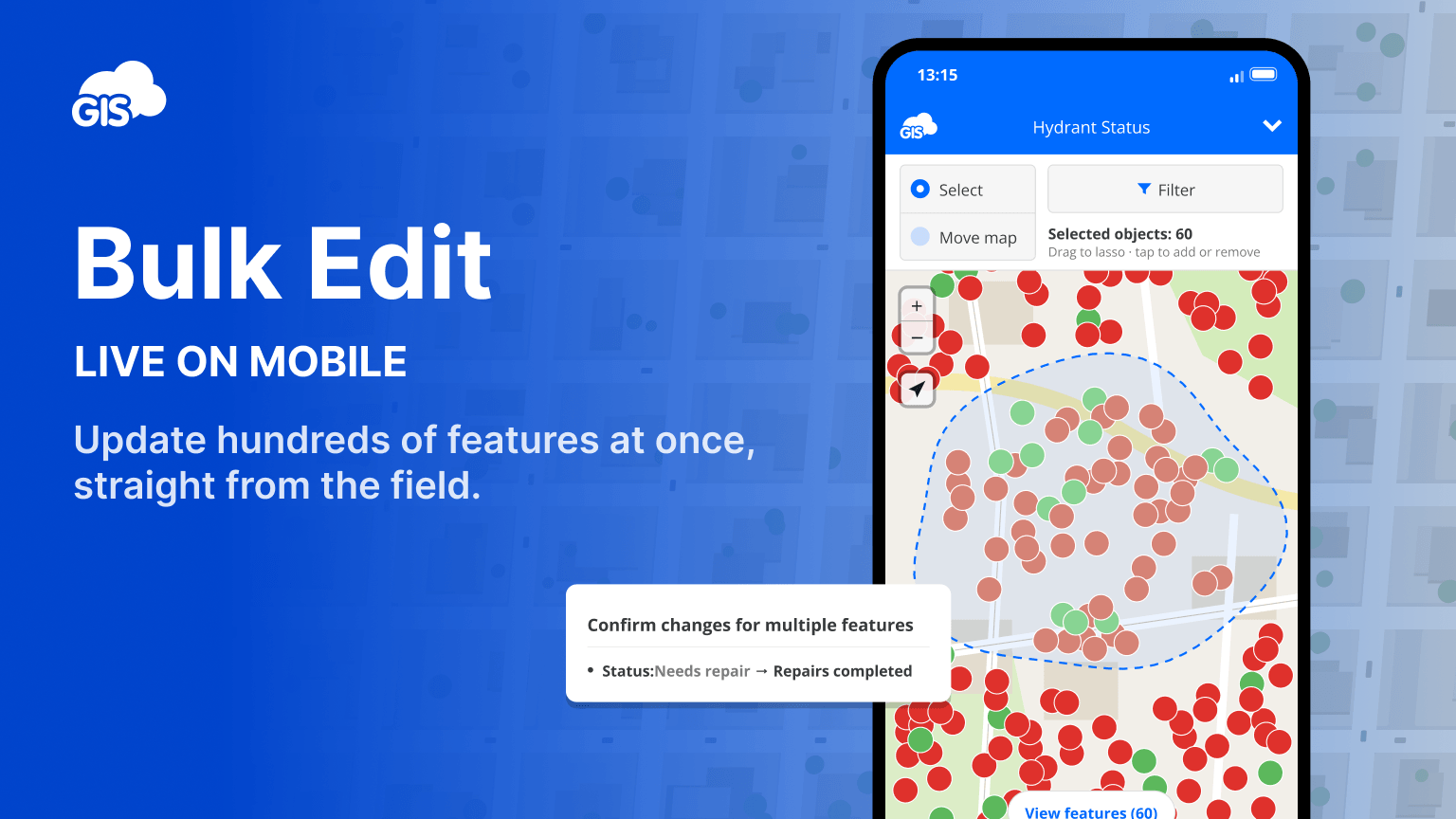
Field crews can now edit dozens or hundreds of assets from their phones and log their progress before leaving the site. Draw around the assets on the map or filter by a field value, then enter the update once. Supervisors can see what’s finished and plan where the next crew should start.
Say a solar crew has just installed a block of racks. The crew lead draws around the block, sets the status to Completed, and checks the selection before saving. The project manager can see which block is ready for the next phase while the crew is still on site.
For organizations, that means progress data on the day the work is done, less evening data entry, and fewer missed or mistyped updates.
After we added Bulk Edit to Map Editor, customers asked for the same capability on their phones. That’s what we’ve added to Mobile Data Collection. Read about the original Map Editor Bulk Edit release.
Draw around a work area or filter for the assets you need
The user experience on a phone matters most when the map is crowded. Think of a crew lead trying to select a row of poles. Several markers can sit close together on a small screen, and tapping them one at a time makes it easy to miss one. We designed Bulk Edit around the two things crews already know about the features they need to update: where they are and what’s recorded about them.
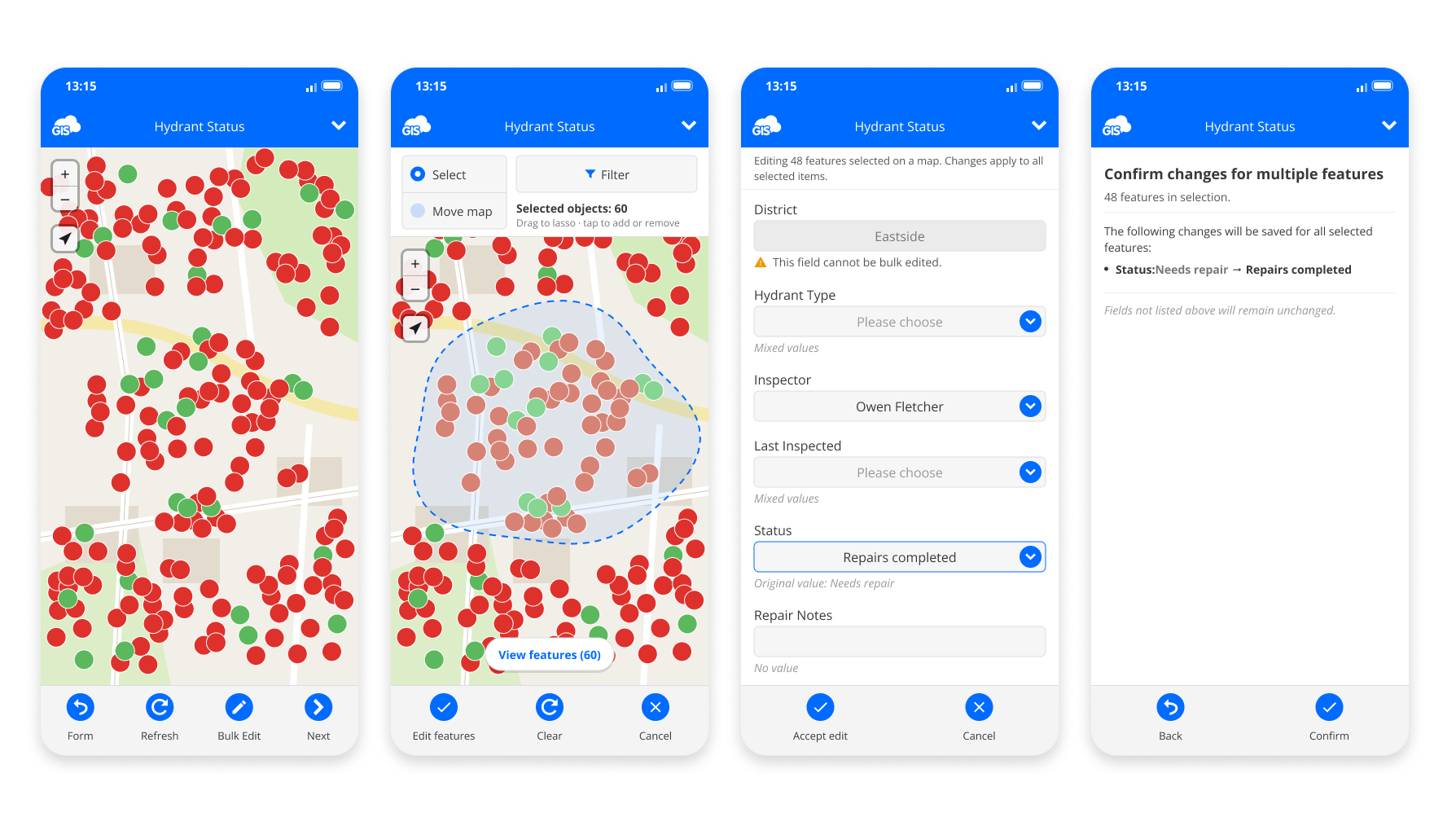
Draw around the area you worked on. With the lasso, trace around a row of poles or a block of racks with your finger to select the group in one move.
Use a filter when the assets are spread out. If you need to update valves marked Needs repair across a district, filter by that status and see how many match before applying the filter.
Combine the lasso and filter to update just the assets that need it. When two crews are working on the same map, draw around the section your crew finished and filter for assets still marked In progress. Check the selection, then mark those assets Completed in one edit.
Make one update and apply the form rules to each feature
Bulk Edit opens the form your crew already uses. If the selected objects have different values in a field, the form shows Mixed values so you know where your update will replace different entries.
The form still shows relevant follow-up fields and protects fields that are locked for bulk editing. When a crew marks a block of racks as Completed, any configured progress calculation runs for each rack using its own data. You can also attach a shared photo to the selection, such as an overview of the finished block.
Check what will change before you save
The review screen shows how many features are selected, which fields will change, and which values the form calculated. That gives the crew lead a chance to spot an object selected by mistake or catch an incorrect status before confirming.
If the save fails, no updates are applied. Your entries stay in the form so you can try again without re-entering them.
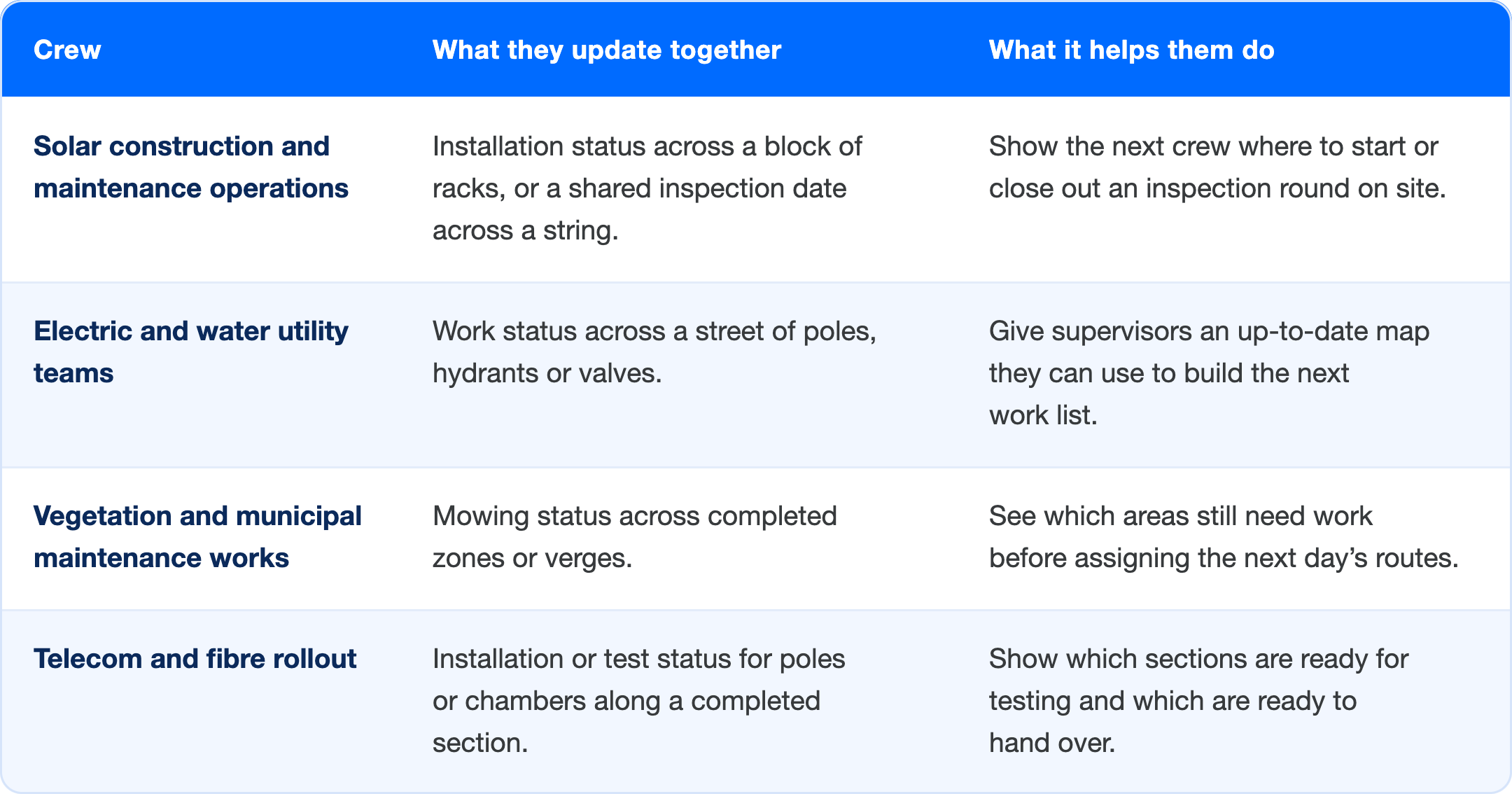
Where Bulk Edit saves time
How Bulk Edit in MDC is different
Other field apps let you edit several features at once, but on a phone they ask you to tap each feature one by one, cap a single edit at around 100 features, or keep bulk editing in the browser.
In MDC you select by drawing around features or by filtering on a field value, with no fixed limit on the selection, and your form’s automations are calculated for each feature separately. You can also add photos to the whole selection in one step, something we did not find in other field apps. For a detailed side-by-side look, see our comparison of bulk editing tools.
Getting started
Open a project in the latest version of GIS Cloud Mobile Data Collection and tap Bulk Edit. For setup and a walkthrough with screenshots, see the Learning Center guide to Bulk Edit on mobile.
Mobile Bulk Edit requires an internet connection for now. Crews can still collect data and edit individual assets offline. Offline support is planned for the next release.