Getting a data collection project running in GIS Cloud has always been quick. Map + layer + form = crews collecting. That part was never the problem.
The time goes somewhere else. It goes into building complex forms and everything related to setting up each field: which field options belong in each dropdown, which form fields are required, which should stay hidden, which have dependencies on other form field values, and so on. Add automation rules, and you’re writing JSON. This way, a form you can sketch in ten minutes takes an afternoon to actually finish.
And that work includes knowing industry standards and what an inspector needs to check at a hydrant, information that lives in someone’s head or in a playbook nobody reads while building a form.
This is the part that changed. Not because AI types faster, but because it already knows what an inspector checks at a hydrant. You stop supplying that knowledge and start reviewing it.
With GIS Cloud AI and the right prompt, any user can get a form that reflects common knowledge of industry standards and the needs of the actual work in the field. This means some form fields appear only after a previous field gets a certain input, or even automatically fill in based on previously set automation rules.
Here’s an example of the actual workflow.
Field types, dropdown options and conditional logic, written from one prompt in minutes
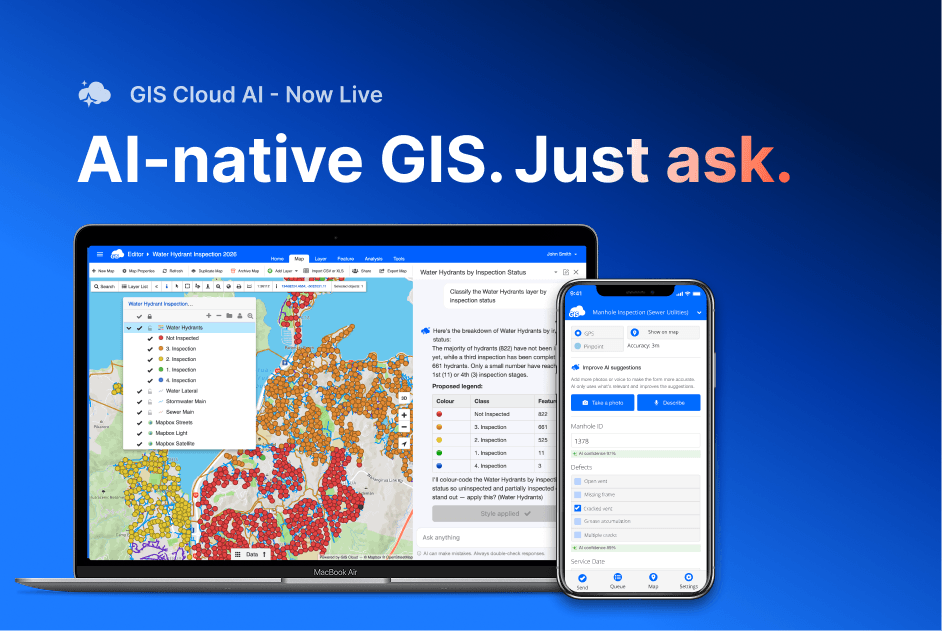
For this example, we opened a hydrant map in Map Editor, with a few thousand points in the Water Hydrants layer. This workflow involves an open map in GIS Cloud, but AI can create forms or data collection projects even without any maps or data. Then we clicked on the Ask AI button in the action bar.
The prompt
Write what you want to achieve, and some details on what the output should include, for example:
“Create a data collection form for water hydrant inspections. Use the Water Hydrants layer as a base. Create the form so it meets industry standards.”
Note what isn’t in there: any description of a hydrant, what we store about one, or what an inspector checks.
What came back
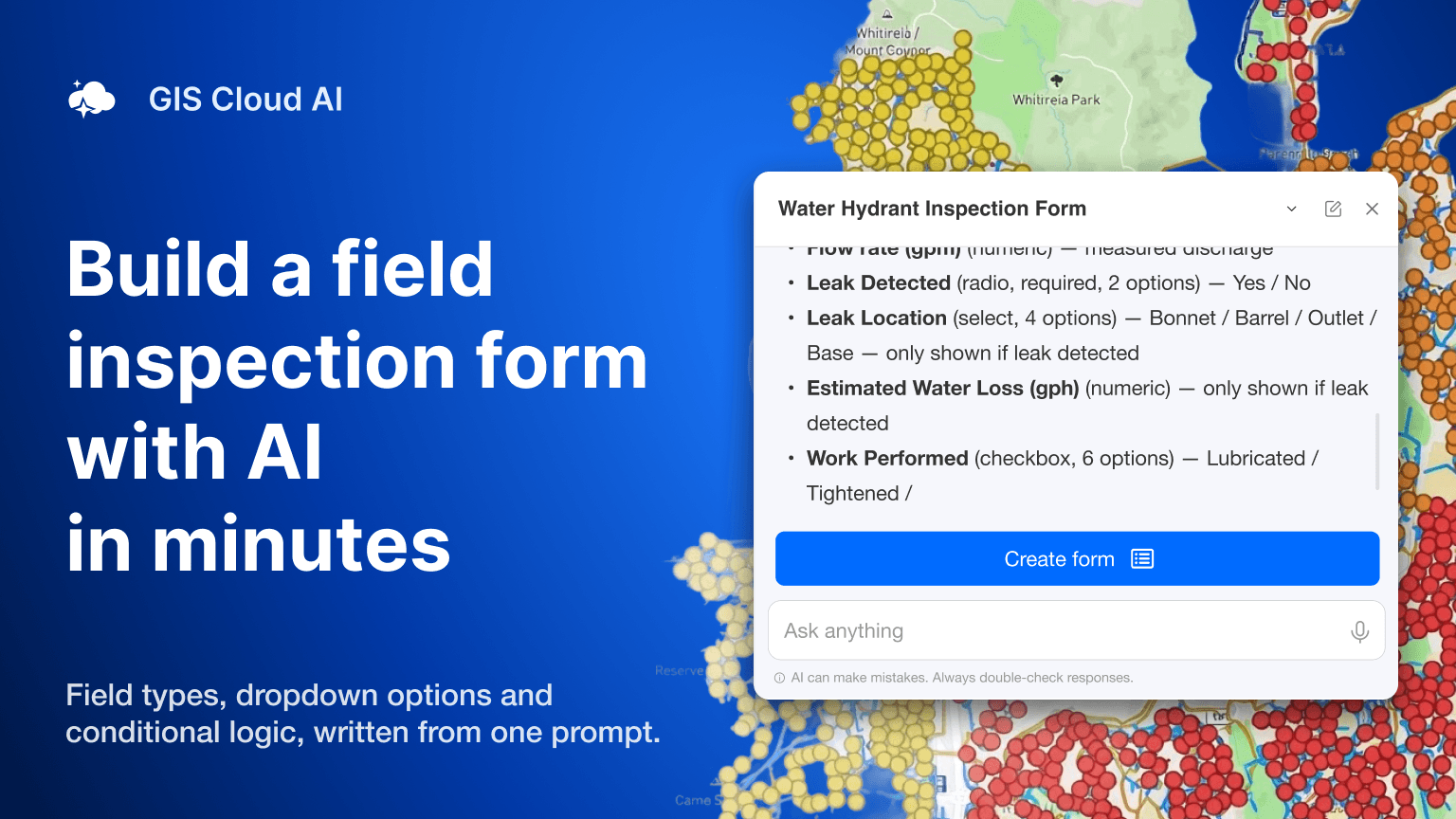
A full form field list, laid out before anything was created. Not just names, but the type of each field, whether it’s required, and the options behind it. Overall Condition field came with Good, Fair, Poor, and Out of Service values already written. Hydrant Type field has Dry Barrel, Wet Barrel, and Flush as value options.
Some fields only appear when they matter. Leak Location and Estimated Water Loss stay hidden unless Leak Detected is set to yes. Obstruction Description shows only when the hydrant is marked obstructed. Follow-up Notes appear only if follow-up is required. Conditional logic like this is usually the slowest part of building a form by hand, and it arrived configured.
It also filled in the things people forget. GPS coordinates and device ID are captured automatically rather than typed. Inspector Name is marked as persistent, so it carries across submissions instead of being re-entered at every hydrant. A signature field. Photo fields for the hydrant, its defects, and any leaks.
Nothing was created without your approval
At the bottom of the proposal sat one button: Create form. Read the list, then decide if you want to edit it (also by prompting) or use it as it is.
Clicking it opened Forms manager with the built form. Every field was in place with its type, name, and label, options filled in, and dependency rules configured. The kind of thing that would be an afternoon of clicking and reviewing.
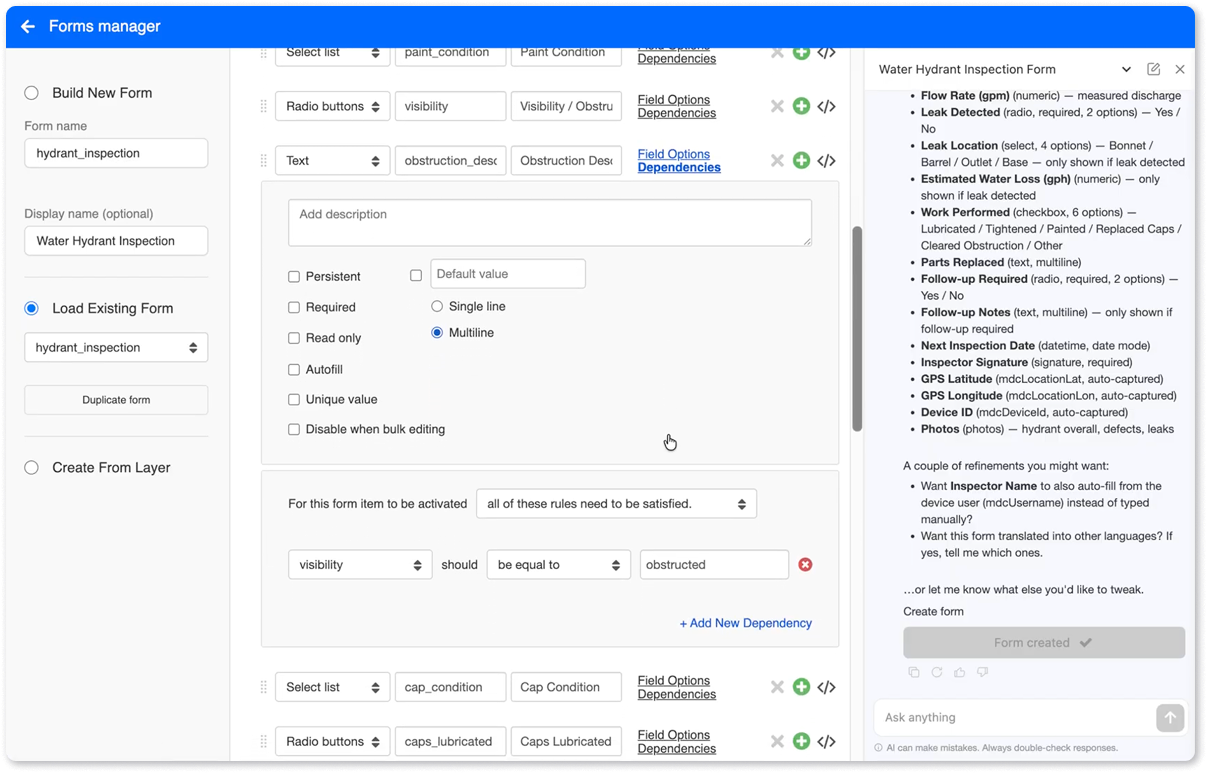
It kept going, revealing additional improvements
Once the form existed, Ask AI suggested two things we hadn’t thought to ask for. To auto-fill Inspector Name from the signed-in device user instead of typing it. And translate the form into other languages, if crews need it.
The conversation stayed open the whole way. Same chat on the map, same chat in Forms Manager, no re-explaining what we were doing.
About ‘industry standards’
That phrase did real work in the prompt, and it’s worth being clear about what it means. It steers the AI toward established inspection practice rather than a copy of your existing columns. It doesn’t audit anything, and it doesn’t make the result compliant with your standard. It reflects common industry practices. You can, however, paste your standards and policy into the prompt.
Review the form before you share it with your field crew. That’s still your job.
It doesn’t stop there
Remember the JSON. Automation rules in GIS Cloud are written by hand in JSON, which is why plenty of teams have a rule they’ve been meaning to set up for a while. Ask AI writes those too. You describe what should happen and it produces the rule.
That’s a bigger subject than one post, and we’ll come back to it. Same principle either way: you describe the outcome, not the syntax.
One more step, same conversation
The form exists, but it isn’t attached to anything yet. Ask AI to connect it to the Water Hydrants layer, and that happens in the same chat, no hunting through settings.
Share the form with your field workers, and it’s ready to start collecting data. Crews open the form in the Mobile Data Collection app, tap an existing hydrant to update info, or start filling in the form you just described in three sentences. Offline if there’s no signal, syncing when there is. Once filled in and sent to the cloud, the hydrant appears as a dot on a map with all data attached to it.
Try it on a layer you already have
Open a map, hit Ask AI, and name the layer you want to collect against. That layer is the brief. You describe the job, not the data.
Log in to your GIS Cloud account or start free.