Every GIS Cloud user has been there. You’ve spent the day in the field inspecting assets, collecting data, and verifying conditions. Now you’re back at your desk with 50, 200, maybe 1,000 features that all need the same status update. And you’re clicking into each one. One at a time.
Or worse – you’re exporting to QGIS, making the changes there, and importing back. Or running a CSV export-import cycle just to update one column.
Those days are over.
What Is Bulk Edit in GIS Cloud?
Bulk Edit lets you select multiple features – on the map or in the datagrid – and open a single form that applies your changes to all of them at once. Select features, click “Edit features,” change the fields you need, save. That’s it.
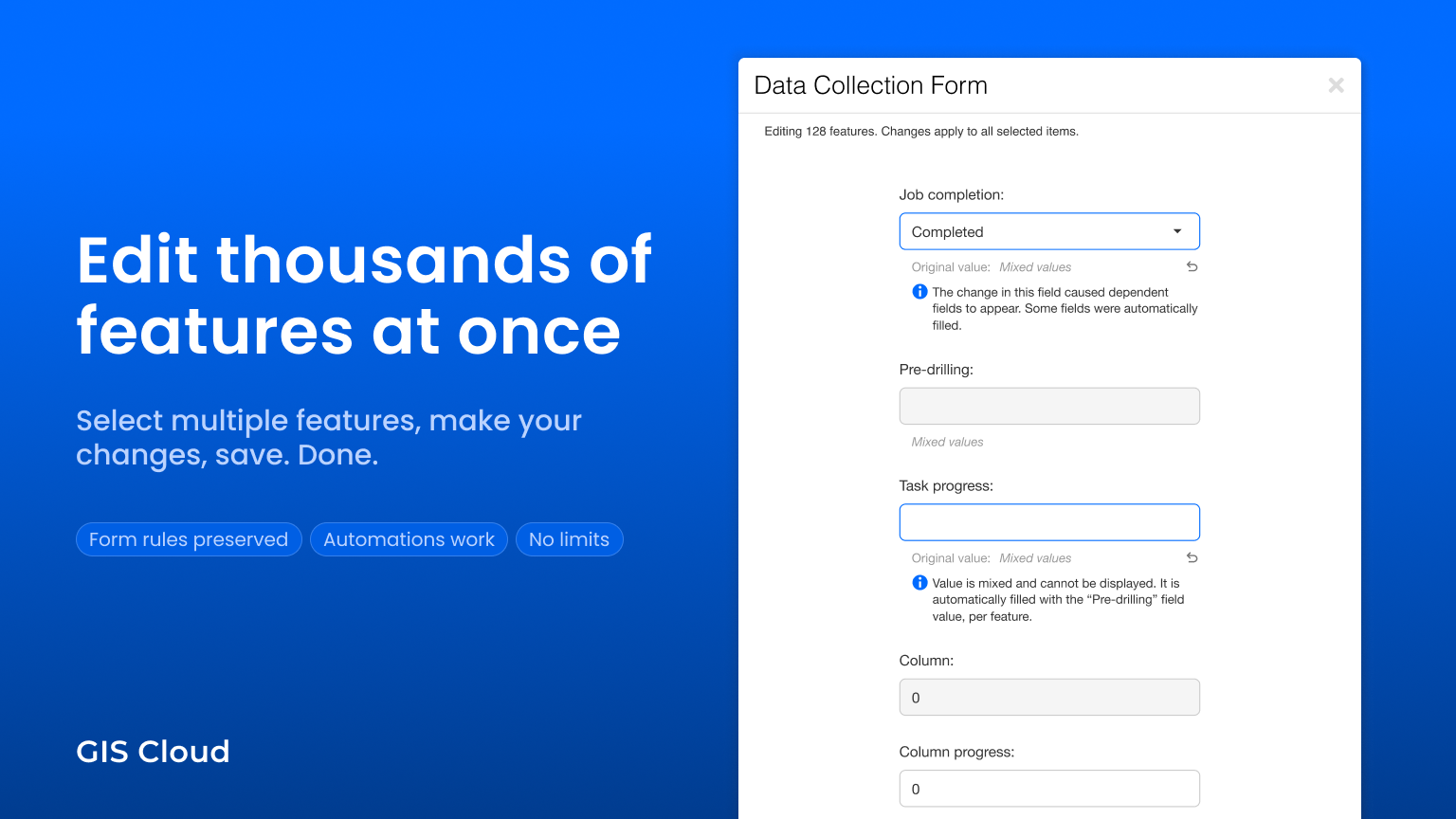
The form looks exactly like the one you already know. Same fields, same layout, same validations. The only difference: it now shows you aggregated data across all selected features and lets you edit their attributes together.
When selected features have different values, the form clearly indicates which fields are mixed – so you always know exactly what you’re changing before you hit save.
How to Bulk Edit Feature Attributes
- Select features using lasso, area select, Ctrl+click on the map, or checkboxes in the datagrid.
- Click “Edit features.” A familiar form panel appears, showing “Editing N features.”
- See what’s different. Fields with mixed values across features are clearly marked.
- Change what you need. Only the fields you touch get updated. Everything else stays exactly as it was on each feature.
- Review and confirm. A confirmation summary shows every change before it’s applied. No surprises.
For a detailed walkthrough with screenshots, see our step-by-step tutorial in the Learning Center.
Form Rules Work in Bulk – Validations, Dependencies, Automations
This was important to us. Bulk editing doesn’t bypass your form configuration – it respects it completely:
- Dependencies work as expected. Change a parent field and the dependent fields appear or disappear – just like in single-feature editing.
- Automations fire immediately. Set a status to “Completed” and watch the progress fields auto-fill – for every selected feature individually.
- Validations and required fields are enforced. Nothing gets saved that shouldn’t.
- Read-only fields stay read-only.
Even complex scenarios are handled correctly. For example, setting 200 features to “Completed” where each has a different value that needs to be preserved during auto-complete, triggered by the completed status. The system resolves automations per feature, not as a blanket overwrite.
No More QGIS Round-Trips or CSV Exports
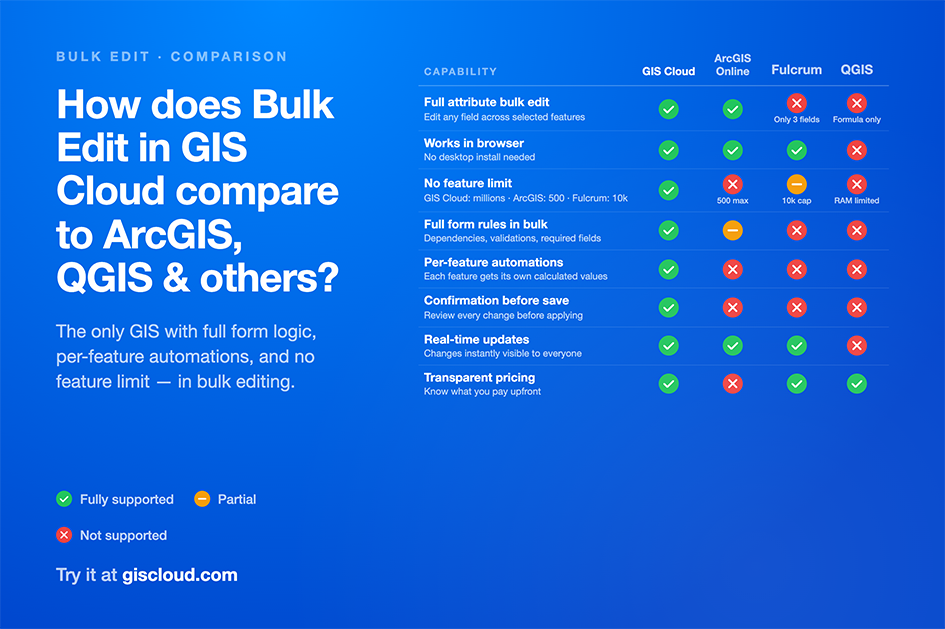
Before Bulk Edit, updating attributes across multiple features meant one of three things: clicking into each feature one at a time, exporting to QGIS for batch changes, or running a CSV export-import cycle. Each approach is slow, error-prone, and breaks the real-time workflow.
Now it’s: select → edit → save. Directly in GIS Cloud, in your browser, with your form rules intact. No external tools, no file juggling, no post-processing.
Built for Scale – From 10 Features to Thousands
Most bulk edit operations involve 10 to 100 features. But we’ve built it to handle thousands. Whether you’re updating a handful of assets after a routine inspection or processing an entire dataset, Bulk Edit scales to your work – instantly.
There’s no enforced feature limit. The same form, the same validation logic, the same confirmation flow – whether you’ve selected 3 features or 300,000.
Available Now in Map Editor
Bulk editing feature attributes is available now in GIS Cloud Map Editor. It works on any layer – with or without a configured form – and scales from a handful of features to thousands.
We’re already working on bringing bulk editing to mobile data collection, so your field teams can make bulk updates directly from their phones. More on that soon.
Ready to try it? Open Map Editor, select some features, and click “Edit features.” Your data workflow just got a lot faster.